
Docs
How SunoMaker works
A practical record of the path from an artist identity to a released record.
Getting started
Overview
SunoMaker keeps an artist's sound, an album's direction, and each track's Suno-ready details together in one desktop workspace. A Chrome extension carries a planned track into Suno, and the takes that come back are kept with the record.
It is for anyone making music with Suno who wants to plan a record before generating it, and to keep what Suno gives back: a consistent sound across an artist's albums, prompts written from decisions rather than from scratch, and the finished audio filed where a music player will find it.
How the pieces fit
- Desktop app
- Where artists, albums and tracks are planned, and where the local library lives.
- Chrome extension
- The bridge into Suno: pick a track and its details land in Suno's fields.
- Suno
- Where the music is made. Its takes come back to the local library.
Setting up
Installing the desktop app
SunoMaker is one desktop app for Windows, macOS and Linux. It is currently built from source, which needs Go 1.25 or later, Node 20 or later, and the Wails CLI (go install github.com/wailsapp/wails/v2/cmd/wails@latest).
Run wails build in the project folder, and the app is written to build/bin.
Your library is kept in ~/.sunomaker. The audio goes in your music folder under SunoMaker, which you can point elsewhere in Settings.
Adding the Chrome extension
The extension is exported from the app rather than installed from a store, because it carries a token made on your machine that lets it reach your copy of SunoMaker.
In SunoMaker, open Settings, then Chrome extension, and choose Export the extension. Copy the folder path it shows.
Open chrome://extensions, turn on Developer mode, choose Load unpacked and point it at that folder.
Connecting to Suno
There is no account to link. Sign in to Suno in Chrome as usual and open its create page while SunoMaker is running: the Fill from SunoMaker button appears in the corner.
For the interviews, connect an AI service in Settings, then AI: Claude, ChatGPT or Grok, either through its signed-in command-line tool (billed to your subscription) or with an API key. Star the one the interviews should use.
The workflow
- 01
Artist
Artist identity and technical style
An artist holds a name, a base technical style, and the reference tracks that shaped it. This is the lasting sound every album and track starts from.
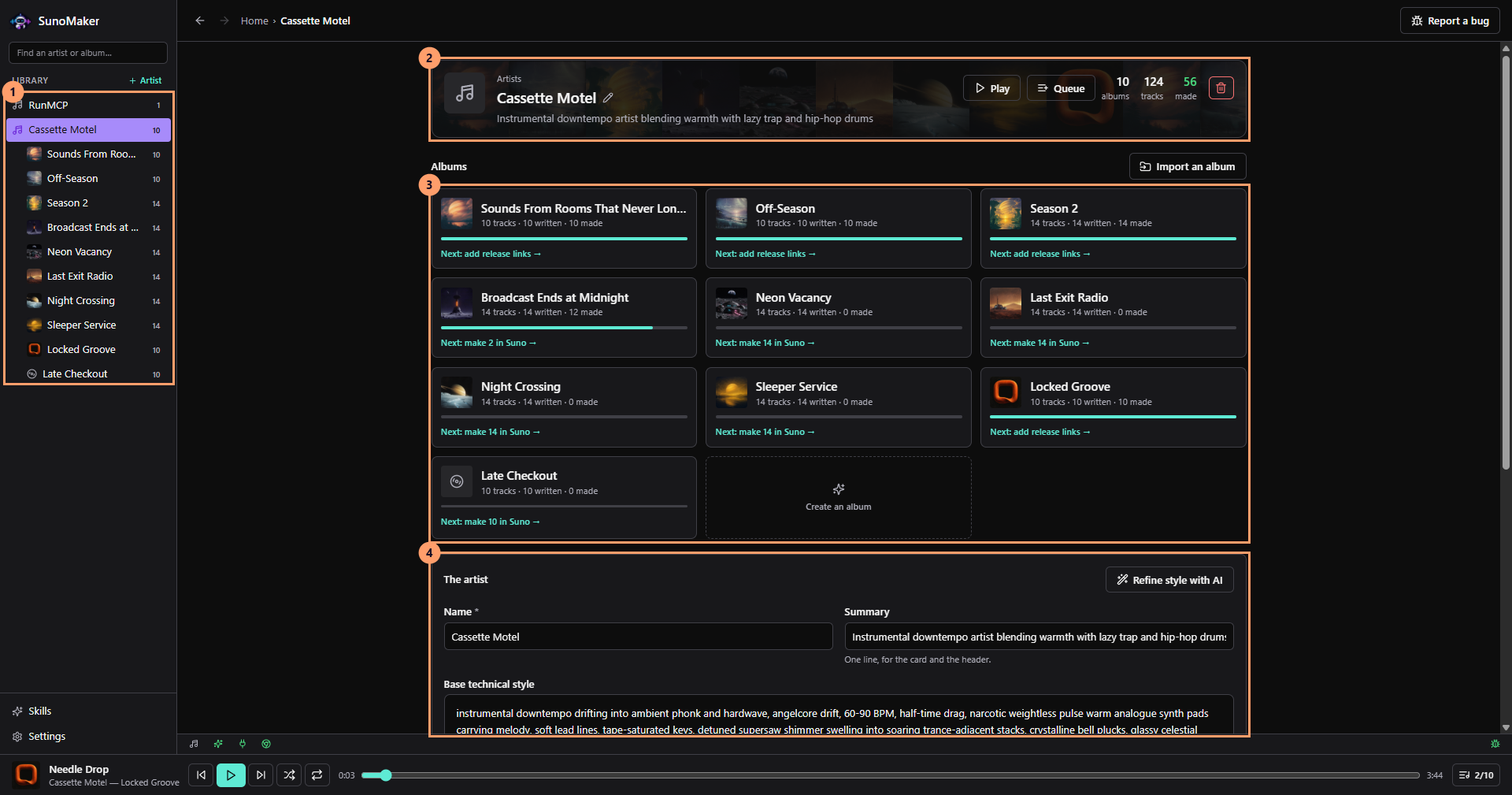
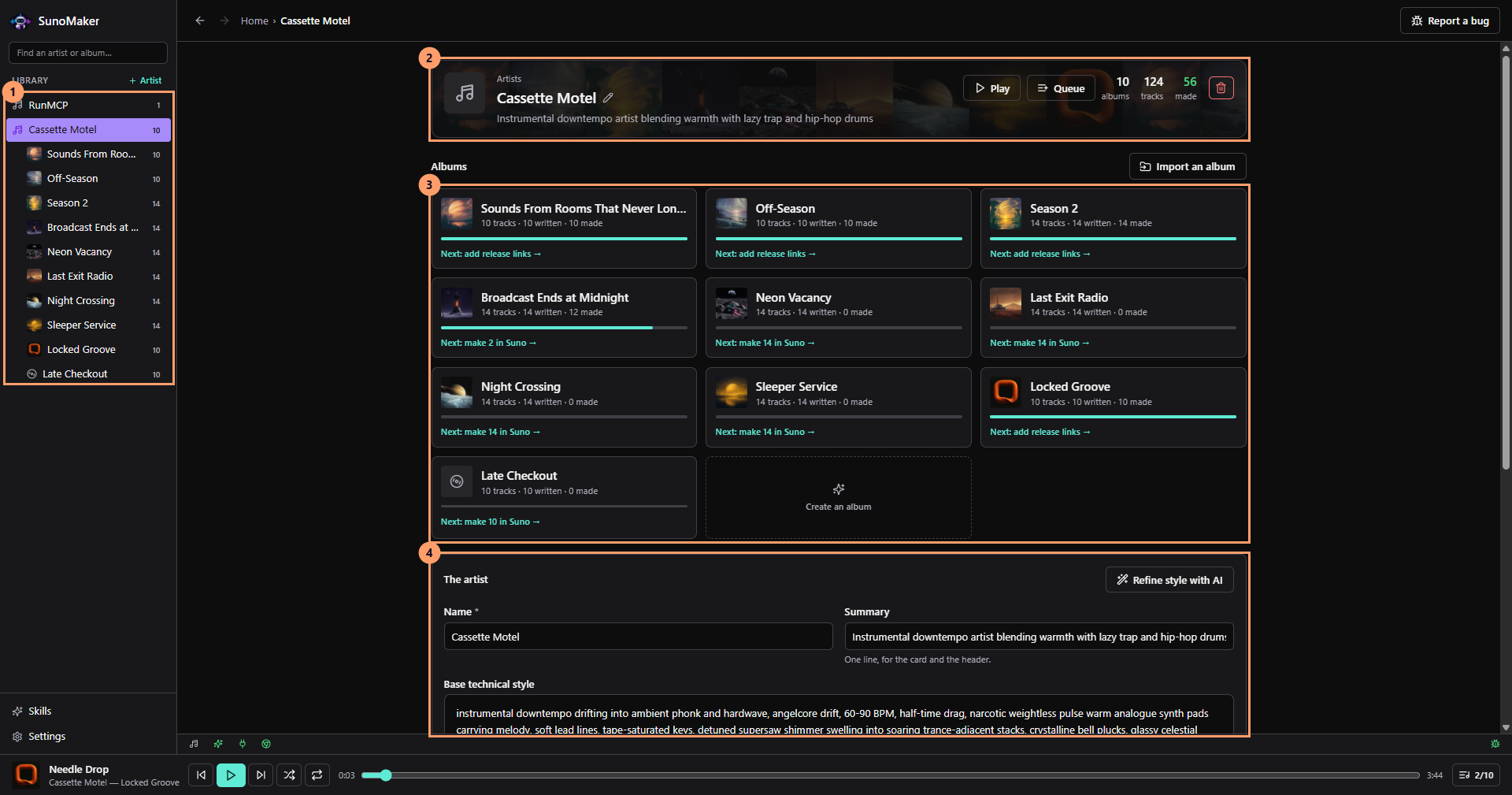
Artist workspace - The library: each artist, with its albums beneath. Add another with + Artist.
- The artist header: its summary, and how many albums and tracks it has and how many are made.
- Every album as a card, with how far along it is and the next thing to do, such as "Next: make 14 in Suno".
- The artist itself: its name, a one-line summary, and the base technical style every album starts from.
- Choose + Artist in the library. An AI-led interview asks what the music is: the instruments, the vocal, the tempo, the production.
- It settles on a name and gathers YouTube or YouTube Music references, each with a note saying what it is there for.
- From the answers it writes the base technical style. Editing that style later corrects every album under the artist, because the two are joined each time a prompt is written rather than copied when an album is saved.
Artist metadata Identity Name, summary, and the YouTube references the sound was decided from Technical style The base style every album and track starts from - 02
Album
Album direction and artwork
An album captures what changes for this release: its direction and artwork. Its release links are added later, once the record is out.
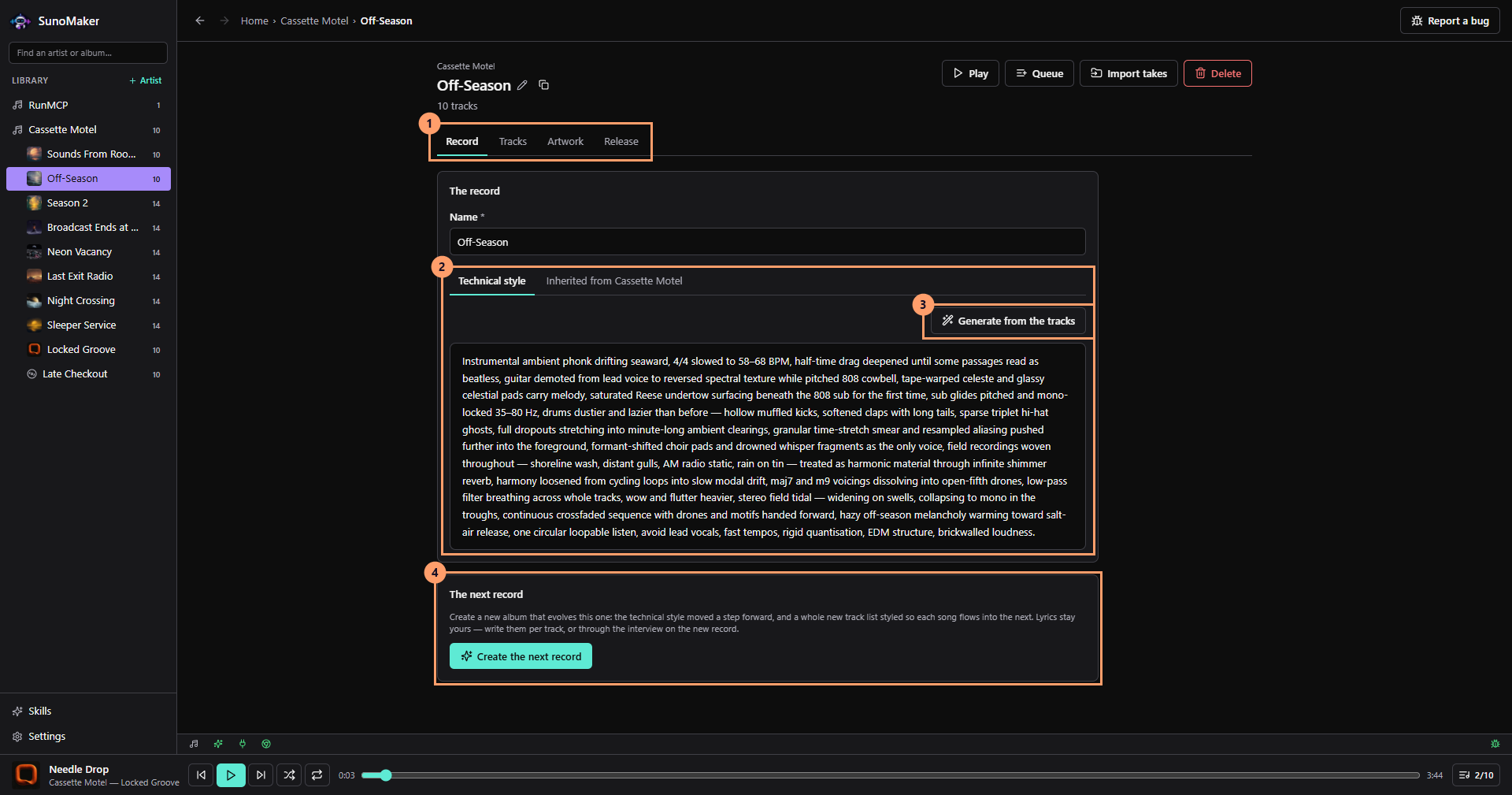
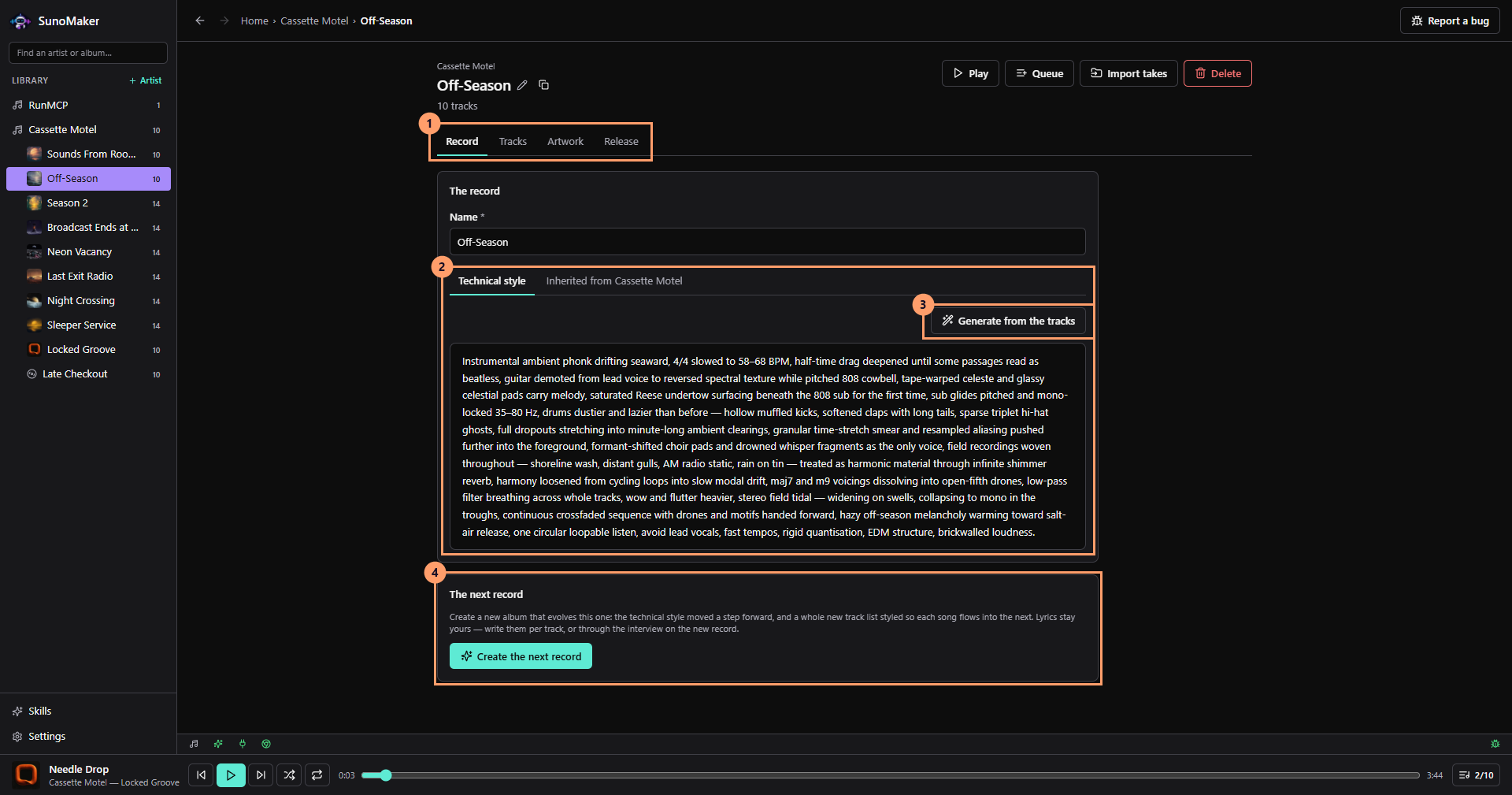
Album and track detail - An album has four tabs: Record, Tracks, Artwork and Release.
- The album's own technical style. The tab beside it shows the artist style it inherits.
- Generate from the tracks writes the album style from its track list.
- Create the next record starts a new album that moves this one's style a step forward.
- Create an album from the artist page. Another interview asks what is different about this record, what to call it, and what the cover should look like. Only the name is required.
- The album keeps a technical style of its own: only what differs from the artist. Generate from the tracks can write it from the track list once there is one.
- The cover is generated from the description, or dropped in from a file, on the Artwork tab.
Album metadata Direction What is different about this record, and its own technical style Artwork A generated or dropped-in cover - 03
Track
Track title, Suno style prompt, lyrics and target length
Every track keeps the details Suno needs: its title, Suno style prompt, lyrics and target length.
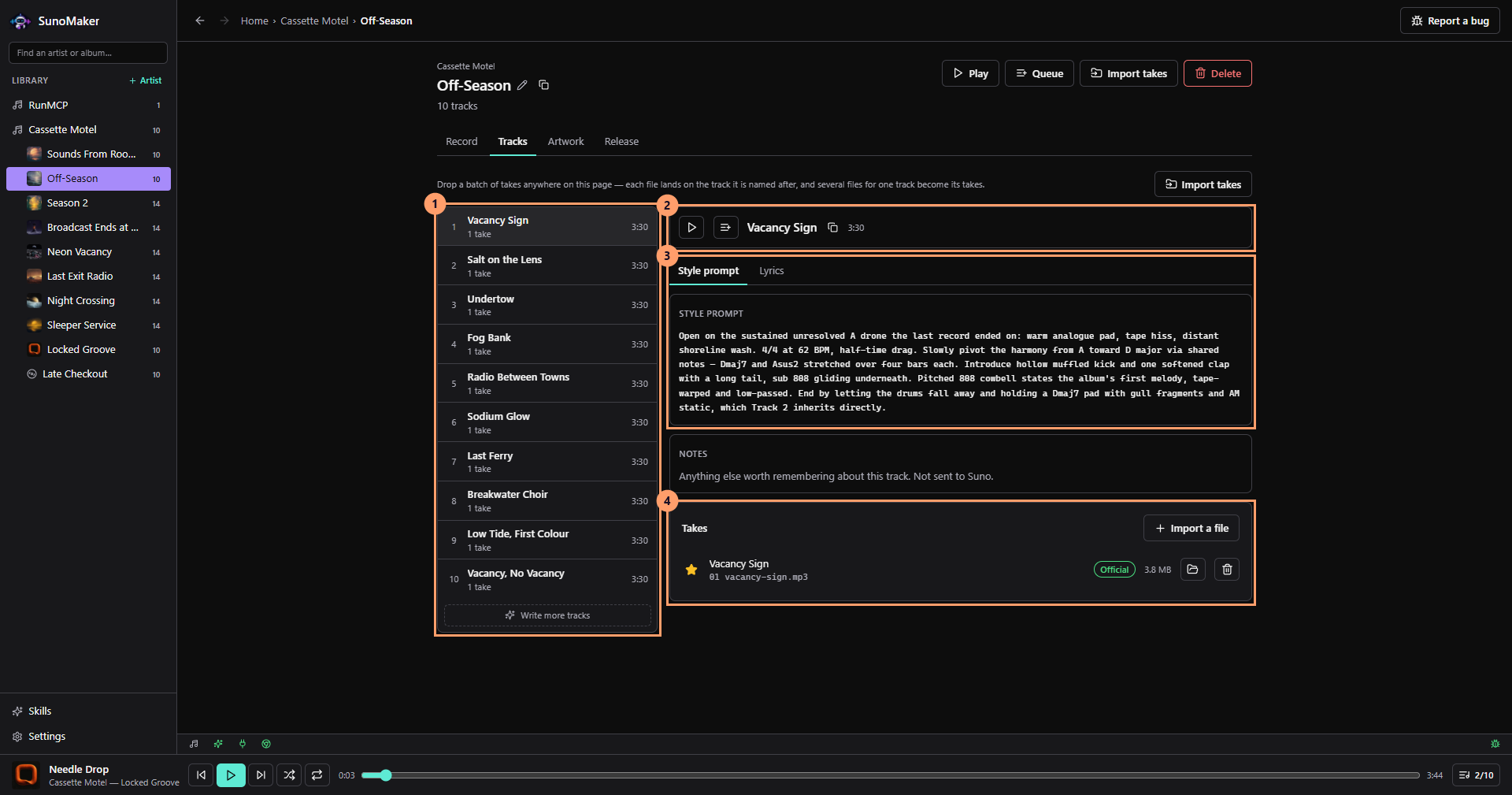
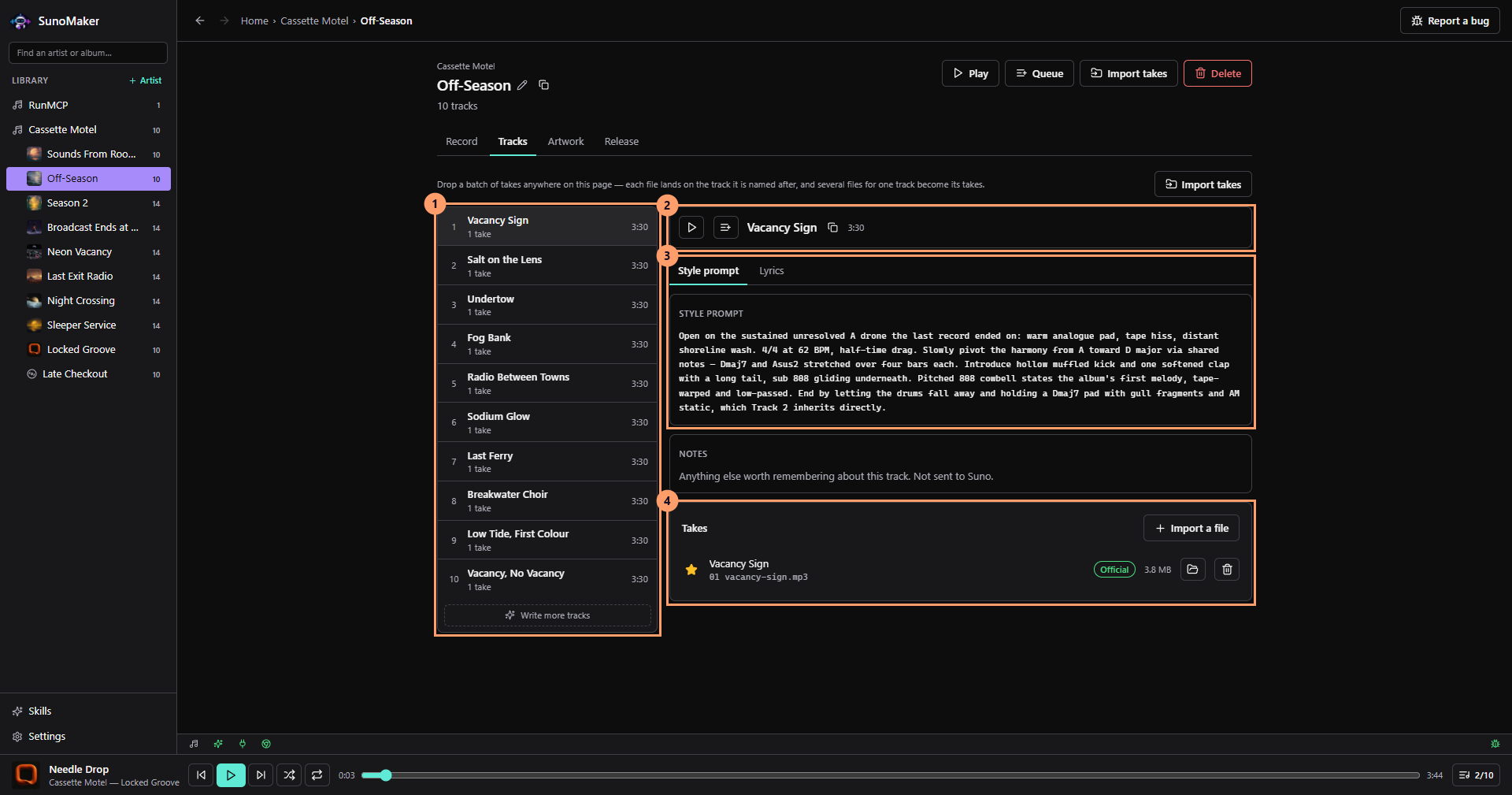
Track detail - The album's track list, with each track's number of takes and length.
- The selected track, with buttons to play it and add it to the queue.
- Its Suno style prompt. Lyrics are on the tab beside it.
- The takes that have come back from Suno for this track.
- A third interview, briefed with the combined artist and album style and the tracks already on the record, writes each track's title, Suno style prompt, lyrics and target length.
- Ask for several and it writes several at once.
- Every field stays editable on the Tracks tab.
Track metadata Title Goes into Suno's Title field Suno style prompt Artist and album style joined, then the track's own; goes into Suno's Style field Lyrics Goes into Suno's Lyrics field Target length In seconds; goes into Suno's Duration field - 04
Extension
Chrome extension handoff into Suno
Choose a track in the Chrome extension's library picker. SunoMaker places that track's title, lyrics and style prompt into the matching fields in Suno.
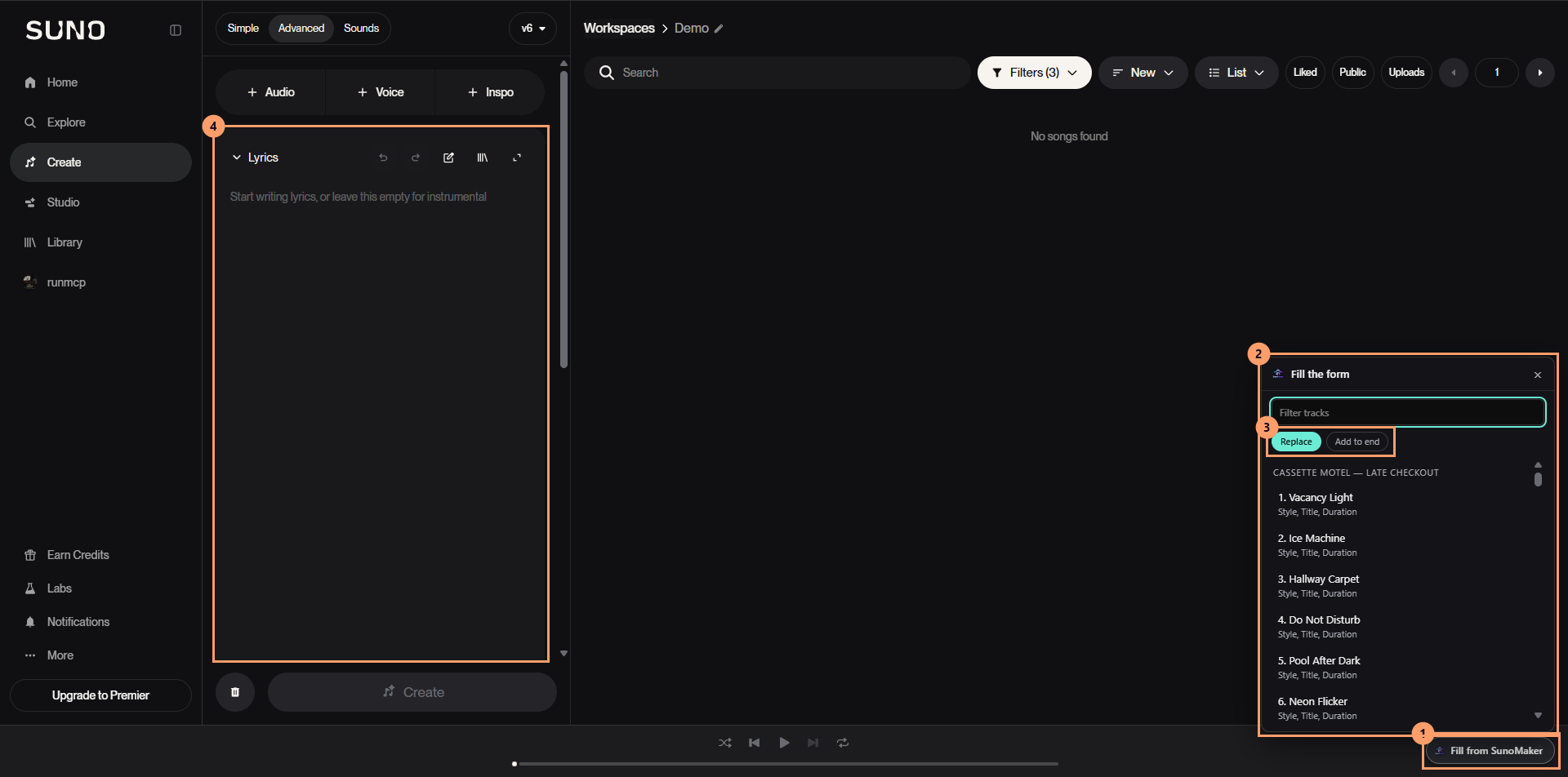
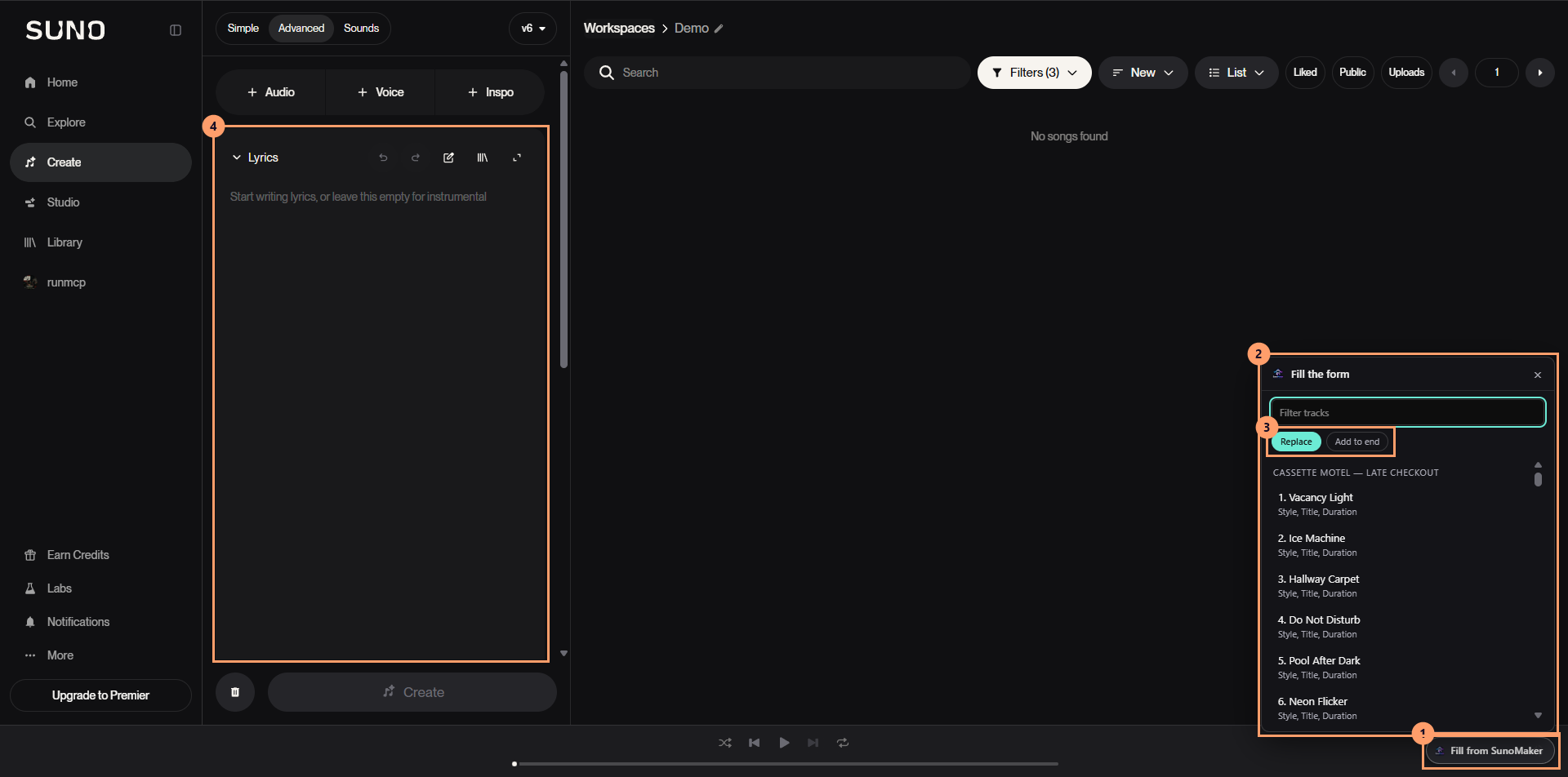
Chrome extension in Suno - Fill from SunoMaker, the button the extension adds to Suno.
- The library picker lists tracks by artist and album, with a filter at the top.
- Replace what is already in Suno's form, or add to the end of it.
- Choosing a track fills Suno's fields. Under each track, the picker lists the fields it will fill.
- With SunoMaker open, go to Suno's create page. The extension adds a "Fill from SunoMaker" button in the corner, and a small button on the Lyrics, Style, Title and Duration fields it can find.
- Fill from SunoMaker fills the whole form from one track. A field's own button fills just that field.
- Choose Replace or Add to end first, then pick the track. The picker opens on the album made most recently.
- 05
Takes
Returned takes
Bring finished audio back to the local library and compare the takes that returned from Suno.
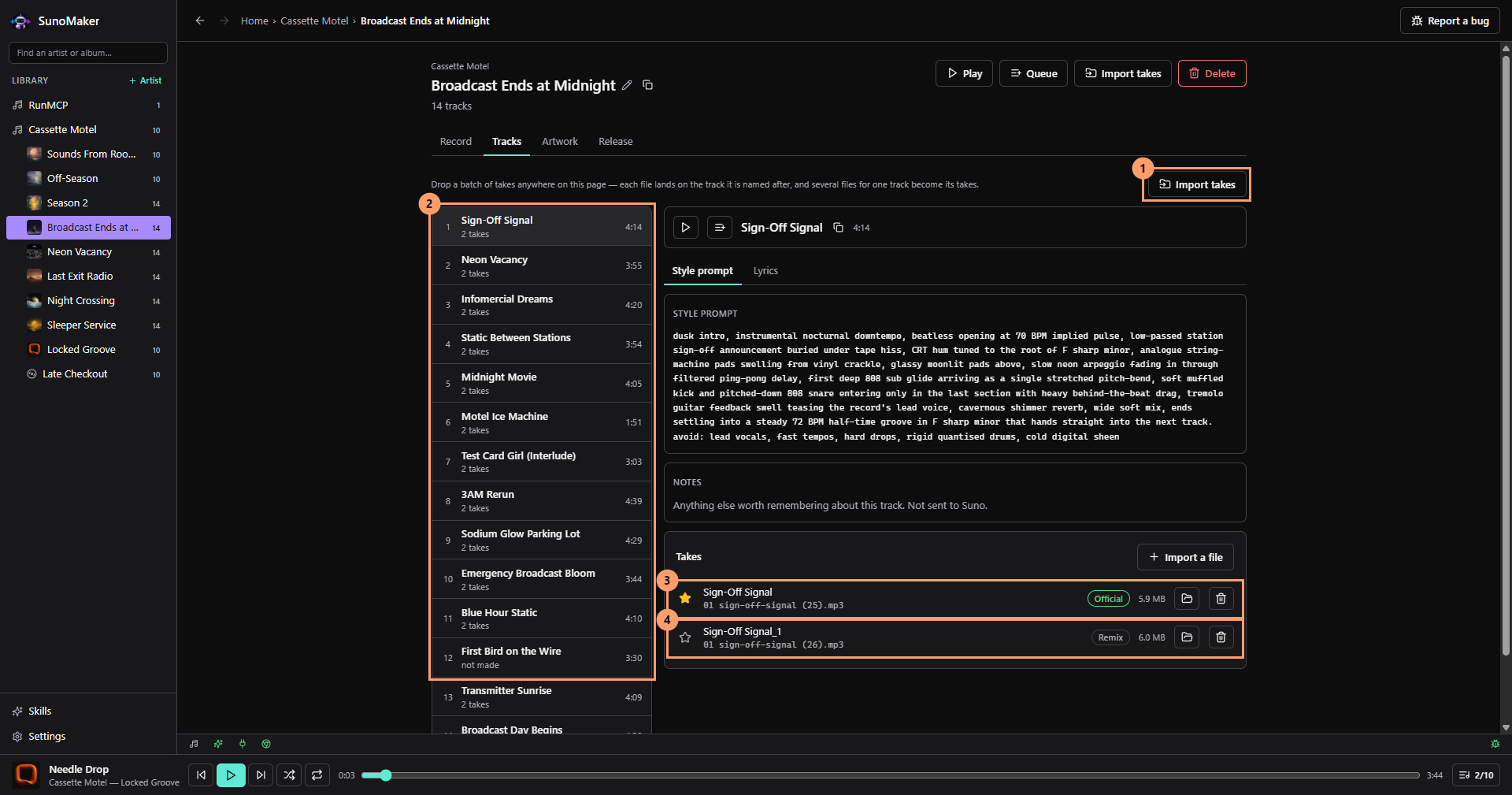
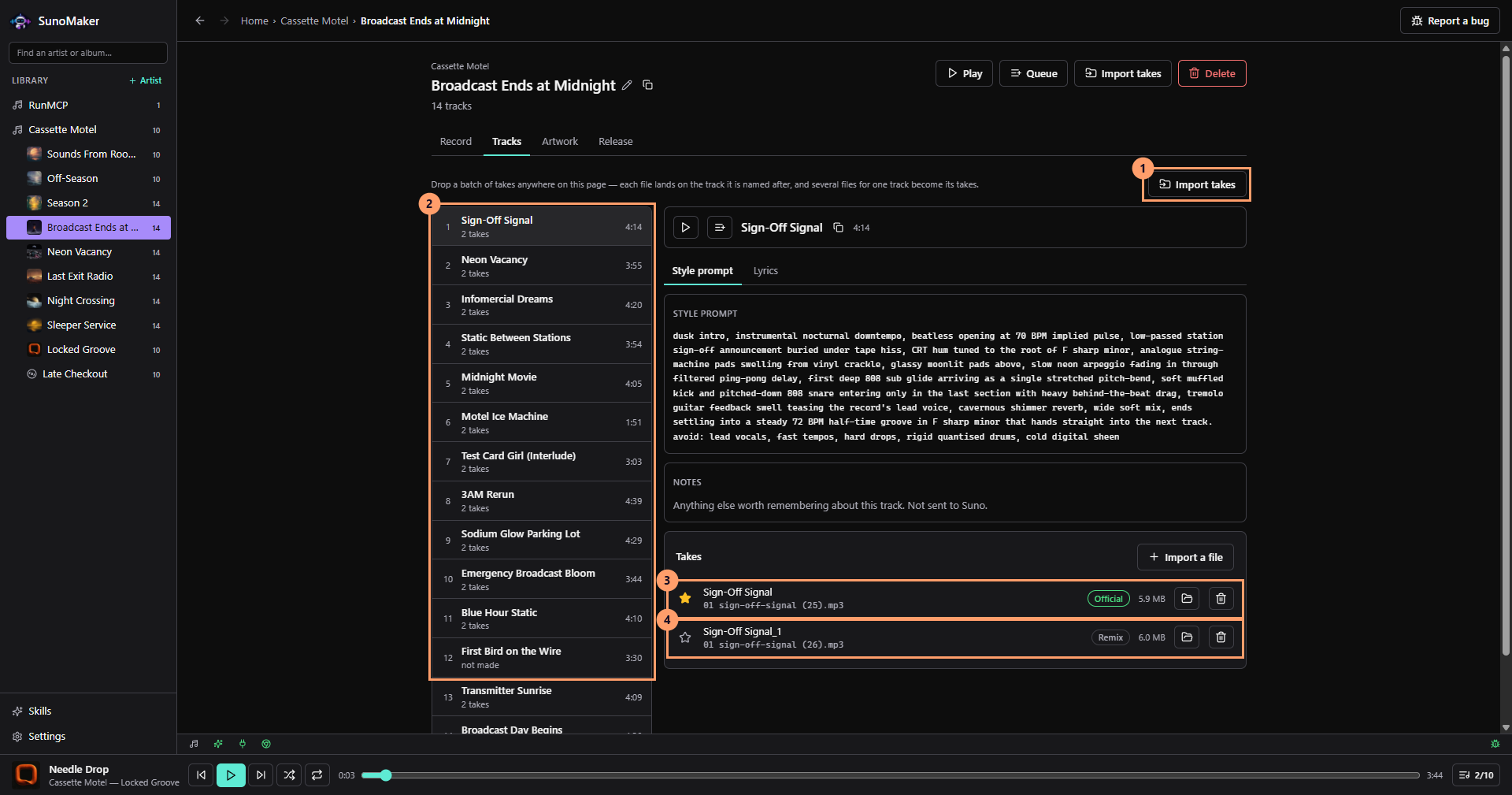
Library and selected takes - Import takes, or drop a batch of audio files anywhere on the page. Each file lands on the track it is named after.
- Each track shows how many takes have come back, or "not made" if it has not been made in Suno yet.
- The starred take is the definitive one, marked Official.
- The other takes stay with the track. This one is labelled Remix.
- When Suno has made the song, download the audio and bring it back with Import takes on the album's Tracks tab, or drop a batch of files anywhere on the page.
- Each file lands on the track it is named after, and is filed in your music folder.
- Play the takes from the track to compare them.
Takes metadata Take One audio file Suno gave back, imported against its track Duration Read from the audio file - 06
Definitive take
Selected definitive take in the local library
Mark the take that represents the song. It stays in the local library, connected to its track, artwork and release links.
- Star the take that is the song. It is marked Official.
- The other takes stay with the track, so nothing Suno gave back is lost.
Definitive take metadata Take One audio file Suno gave back, imported against its track Duration Read from the audio file Library path <Music>/SunoMaker/Artist/Album/01 Track.mp3 - 07
Release
Release links
When the record is out, its release links are added to the album so the finished music stays with the decisions that made it.
- Once the record is out, add its Apple Music, Spotify and YouTube Music links on the album's Release tab.
- Apple Music
- Spotify
- YouTube Music
Reference
Record structure
The library is kept as a hierarchy, top down:
- ArtistName, base technical style, reference tracks
- AlbumDirection, artwork, release links
- TrackTitle, Suno style prompt, lyrics, target length
- TakeReturned audio; one is marked definitive
Features
- Guided AI interviews for artist, album and track planningA conversation that works out the sound, the record and the songs, then writes the style, prompts and lyrics from your answers.
- Reusable creative skillsThe briefs the app works from: how it interviews, how it writes a Suno prompt, what a cover should look like. Edit them or write your own.
- Album artworkA cover generated from the album's description and style, or dropped in from a file you already have.
- Queue and now-playing surfacesPlay a track, an album, an artist or everything, and listen back to takes without leaving the app.
- Connected AI services and MCP accessClaude, ChatGPT or Grok by signed-in CLI or API key, and the whole app offered as tools to AI assistants over MCP.
- Local library organizationAudio filed in your music folder as Artist/Album/01 Track.mp3, where any music player will find it.
MCP tools
SunoMaker is also an MCP server, so an AI assistant can do everything the window does: plan artists, albums and tracks, file takes, make covers, run the interviews and work the bug queue.
In SunoMaker, open Settings, then AI, and find AI assistants. Each client installed on this machine has a Connect button. It adds one entry named suno-maker to that client’s own config and changes nothing else in the file. Remove takes it out again.
The entry launches the SunoMaker app itself with the argument mcp, speaking MCP over stdio. There is no token and no port: the server reads the library directly, so it works whether or not the window is open. When the window is open, it refreshes to show what the assistant changed.
An assistant should call get_documentation first. It describes the app, its workflow and which tool does what.
Clients it connects to
| Claude Code | ~/.claude.json |
|---|---|
| Claude Desktop | claude_desktop_config.json, in Claude’s own settings folder |
| Codex | ~/.codex/config.toml |
| Gemini CLI | ~/.gemini/settings.json |
| Antigravity | ~/.gemini/antigravity/mcp_config.json |
| Grok | ~/.grok/mcp.json |
Good to know
- Deletes are not confirmed. delete_artist, delete_album and delete_track say there is no undo, and the assistant is trusted with them as the window is. The audio itself stays on disk unless remove_track_file is asked to delete it.
- API keys never leave the app. Providers are read masked through list_ai_services and connected through connect_ai_key, which checks a key with the provider before storing it.
- Six things the window does are left out on purpose: the two file dialogs, raising the window, opening a link in your browser, dismissing the fixed-bugs notice, and listing the tools, which MCP already does.
- A tool that refuses answers with the reason instead of failing silently, so the assistant can read it and try something else.
The 85 tools
Grouped as the app's own Settings lists them. Changes marks a tool that writes to the library, a setting or a file.
Library (18)
Artists, albums and tracks, and the app’s own account of itself.
| Tool | What it does | Changes |
|---|---|---|
| get_documentation | SunoMaker at a glance: what it holds, how the workflow runs, where things live and which tool does what. Read first. | No |
| library_tree | Every artist with their albums, each album’s track count and cover, in one call. | No |
| list_artists | Every artist, newest first, with how many albums each has. | No |
| get_artist | One artist, with its base technical style and the YouTube references it was decided from. | No |
| save_artist | Create or update an artist: name, summary, base technical style and references. | Yes |
| delete_artist | Delete an artist and everything under it. The audio stays on disk. No undo. | Yes |
| list_albums | One artist’s albums, oldest first. | No |
| get_album | One album: its own technical style, cover, release links and how far along it is. | No |
| save_album | Create or update an album: technical style (only what differs from the artist), artwork brief and release links. | Yes |
| delete_album | Delete an album and its tracks. The audio and cover stay on disk. No undo. | Yes |
| import_album | Make an album from a folder of finished audio, one track per file in filename order. With a name and no folder, an empty album. | Yes |
| get_album_style | The artist’s base style and the album’s own, combined: what a Suno prompt is written from. | No |
| list_tracks | One album’s tracks in running order, with their prompts, lyrics and files. | No |
| get_track | One track: its Suno style prompt, lyrics and the takes that came back. | No |
| save_track | Create or update a track: title, position, target length, Suno style prompt, lyrics and notes. | Yes |
| delete_track | Delete a track. The audio stays on disk. No undo. | Yes |
| reorder_tracks | Set an album’s whole running order at once. | Yes |
| playlist | A play queue for a track, album, artist or the whole library, with a link to each chosen take. The links play while the app is running. | No |
Files and artwork (12)
Takes, covers, and where the music is filed.
| Tool | What it does | Changes |
|---|---|---|
| import_track_file | File a take against a track from a path on this machine. It is copied into the music folder; the original stays put. | Yes |
| import_track_file_data | The same, from the file’s bytes, for an assistant that has the file but not this machine’s disk. | Yes |
| choose_track_file | Mark one take as the track: the one the extension, the player and the release step use. | Yes |
| remove_track_file | Forget a take, and optionally delete its audio from disk. | Yes |
| reveal_track_file | Open the folder holding a take in your file manager, with the file selected. | No |
| import_album_take | File a take onto an album, matched to its track by file name. Refused rather than guessed when the name matches none or several. | Yes |
| import_album_take_data | The same, from the file’s bytes. | Yes |
| generate_album_artwork | Generate the cover from the album, its style and its artwork brief, or revise the current one from feedback. Needs ChatGPT connected. | Yes |
| import_album_artwork | Use an image you already have as the cover (png, jpg or webp, up to 10 MB). | Yes |
| remove_album_artwork | Take the cover off an album. The image stays on disk. | Yes |
| get_music_root | Where finished audio is filed. | No |
| set_music_root | Point the music folder somewhere else. Files already imported stay where they are. | Yes |
AI and interviews (26)
The app’s own model calls, on whichever provider you connected: the interviews, the extractions and the one-press writers.
| Tool | What it does | Changes |
|---|---|---|
| get_ai_readiness | Whether an interview can run, which provider would answer, and why not if it cannot. | No |
| list_ai_services | Every provider (Claude, ChatGPT, Gemini, Antigravity, Grok), how each is connected, the default and its model. Keys are masked. | No |
| get_ai_service | One provider’s connection state. | No |
| set_default_ai_service | Star the provider the interviews and writers run on. | Yes |
| set_ai_service_model | Choose the model a provider runs, or let the provider choose. | Yes |
| list_ai_models | The models a key-connected provider offers. | No |
| connect_ai_account | Connect a provider through its signed-in command-line tool, billed to your subscription. | Yes |
| connect_ai_key | Connect a provider with an API key, checked before it is stored and never returned. | Yes |
| disconnect_ai | Forget a provider’s connection, key and all. | Yes |
| get_chat | A stored artist, album or track interview, to resume it. | No |
| clear_chat | Throw an interview transcript away. The record it made stays. | Yes |
| ask_interview | One turn of an artist, album or track interview. The reply is added and the conversation stored. | Yes |
| attach_interview_file | Put a file on an interview: a finished take, or a reference image for the artwork. | Yes |
| extract_artist | Read a finished artist interview and return the artist it decided. Saves nothing. | No |
| extract_album | Read a finished album interview and return the album’s fields. Saves nothing. | No |
| plan_album | Write the whole record an album interview described: name, full technical style and track list. Saves nothing. | No |
| extract_tracks | Read a finished track interview and return every track it settled, with any attached takes. Saves nothing. | No |
| evolve_album | Create the next album under the same artist: its style moved one step on, and a new track list sequenced to flow. | Yes |
| write_album_tracks | Write a full track list onto an empty album. Refused on one that already has tracks. | Yes |
| generate_album_style | Distil an album’s technical style from its tracks’ prompts. Saves nothing. | No |
| ask_style_edit | One turn of a conversation refining an artist’s base style. Not stored. | No |
| extract_style_edit | Return the revised base style that conversation agreed. Saves nothing. | No |
| ask_skill_edit | One turn of a conversation revising a skill. Not stored. | No |
| extract_skill_edit | Return the revised skill that conversation agreed. Saves nothing. | No |
| analyze_music_url | Research a song from a YouTube or YouTube Music link and return its identity and a technical style breakdown. Needs Antigravity; takes minutes. | No |
| merge_style_with_analysis | Fold one song’s breakdown into a base style. Saves nothing. | No |
Bug queue (13)
The app’s own bug reports, kept in step with the repository’s GitHub issues.
| Tool | What it does | Changes |
|---|---|---|
| list_bug_reports | The open queue, oldest first, including issues written on GitHub. | No |
| get_bug_report | One open report, with its attachments. | No |
| search_bug_reports | Open reports whose description matches some words. | No |
| get_bug_counts | How many reports are open, fixed, and fixed but not yet seen. | No |
| list_resolved_reports | Fixed reports, newest first, with the commit each fix landed in. | No |
| file_bug_report | File a bug, and open a GitHub issue for it. | Yes |
| update_bug_report | Edit a report and bring its issue into line. | Yes |
| claim_bug_report | Claim a report before working it, so two agents do not take the same one. | Yes |
| release_bug_report | Put a claimed report back. | Yes |
| resolve_bug_report | Resolve a report once its fix is on main, closing the issue with the commit. | Yes |
| attach_bug_media | Put a screenshot, recording or zip on a report. | Yes |
| read_bug_attachment | Look at an image attached to a report. | No |
| get_bug_repo | The repository reports are filed against. | No |
Skills, extension and settings (16)
The skills, the raw settings, the Chrome extension, this server’s own registration, and About.
| Tool | What it does | Changes |
|---|---|---|
| list_skills | The app’s built-in briefs and your own. | No |
| get_skill | One skill’s full text. | No |
| save_skill | Write a skill, or override a built-in’s text. | Yes |
| reset_skill | Return a built-in skill to its original text. | Yes |
| delete_skill | Delete one of your own skills. Refused for a built-in. | Yes |
| get_setting | Read one setting: theme, last_route, default_track_length or music_root. | No |
| set_setting | Write one setting. | Yes |
| get_extension_status | Whether the Chrome extension has been exported, where to, and the port it reaches the app on. | No |
| export_extension | Write the Chrome extension to disk, ready for Load unpacked. | Yes |
| reveal_extension | Open the exported extension’s folder in your file manager. | No |
| bridge_library | The library exactly as the extension’s picker sees it. | No |
| get_mcp_status | Which AI clients SunoMaker is registered with, and how many tools it offers. | No |
| connect_mcp_client | Register SunoMaker in a client’s config, touching nothing else in the file. | Yes |
| disconnect_mcp_client | Remove SunoMaker’s entry from a client’s config. | Yes |
| describe_app | The app’s full map of itself: every page, what it calls and which tool reaches the same thing. Large. | No |
| get_build_info | The version, commit and platform that is running. | No |
Glossary
- Artist
- The lasting sound: a name, a base technical style, and the reference tracks that shaped it.
- Album
- One release's own direction and artwork, and later its release links.
- Track
- A song as planned for Suno: title, style prompt, lyrics and target length.
- Suno style prompt
- The track's style text. The extension places it into Suno's style field.
- Library picker
- Where the Chrome extension shows the library as artist, album and track, and where a track is chosen.
- Take
- One version of a track returned from Suno.
- Definitive take
- The take marked as the one that represents the song, kept in the local library.
Questions
- Does the extension send my library anywhere?
- No. It talks to SunoMaker over 127.0.0.1 only, so nothing off your machine can see it, and it needs the token in your exported copy. It reads your library and never writes to it.
- The Fill from SunoMaker button isn't showing.
- The extension only appears while SunoMaker is open. If the app is open and it still does not appear, export the extension again from Settings and reload it in chrome://extensions.
- A field was not filled.
- Suno does not label its fields in a stable way, so the extension looks for each one by a list of likely matches. A Suno redesign can hide a field from it until the extension is updated. The rest of the form still fills.
- Does it work in other browsers?
- It is a standard Chrome extension, so it should load the same way in Chromium browsers. It has been used in Brave.
- Where are my songs?
- In your music folder under SunoMaker, as Artist/Album/01 Track.mp3. They are kept outside the app's own folder on purpose, so they outlive an uninstall and any music player can find them.
- Can an AI assistant work with my library?
- Yes. Settings, then AI assistants registers SunoMaker as an MCP server with Claude Code, Claude Desktop, Codex, Gemini CLI, Antigravity and Grok. Everything the window can do is available to them as a tool, even while the app is closed.